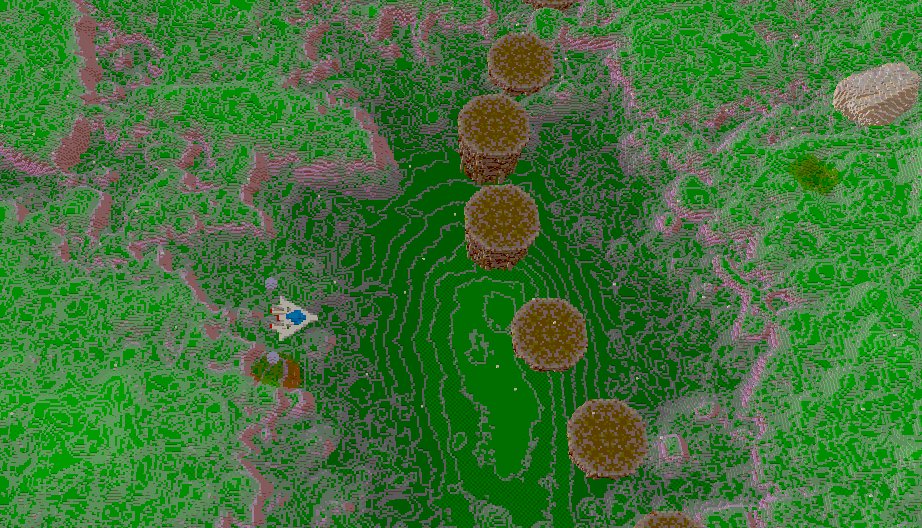
The Voxel World Template is a minimalistic 3D game engine. At its core, it offers a 1024x1024x1024 voxel (=’volume pixel’) world, which can be modified with easy-to-write CPU code. The world is then displayed by the GPU. The template as a whole is a fully transparent package, which invites programming at all levels: from gameplay, via supporting engine functionality, to the lowest level where you talk directly to the GPU using OpenCL code. No pressure, but when you’re ready, the challenge awaits you.
Page contents:
Getting started
Writing games
Tutorial & other links
API overview
 |  |
To program games using the template you need the following:
- Windows 10. Make sure it’s up-to-date. Note: excellent alternatives exist, but for now, it is just easier to get started in Windows. You can always advance to Linux later if you so desire.
- A PC or laptop that can run OpenCL (for now). Most machines from the last 7 or 8 years should be fine. E.g. a 2012 NVIDIA GTX 670 with 2GB of RAM is good. And Techguided.com’s $300 build is already over the top.
- Up-to-date drivers for your GPU (although the template isn’t too finicky).
- Visual Studio Community Edition (free software from Microsoft).
- The template itself: get it from Github.
Next step is to install Visual Studio. Use the default installation settings. This is not hard, but in case you need it, get some instructions from 3DGEP’s FASTTRACK, episode 1.
Then, create a folder on your computer, and unzip the package you downloaded from Github. And finally, open .sln file by double-clicking it. The template should now open in Visual Studio. Pressing F5 should run it.
The template comes with some default settings, which may be unsuitable on your particular system (especially if you actually got that GTX 670). To change the settings, open the template folder in the Solution Explorer in Visual Studio, and open common.h. On line 25, you find the setting GIRAYS, which is set to 4 by default. Change this to 8 for a GTX 2080 Ti or better (for fancy global illumination with less noise) or to 0 for a GTX 670. The basic setting is for basic illumination, which is far less taxing on your GPU, but still lets you run the same game code.
From here:
- Right-click the
froggerGameproject, and select ‘Set as active project’. Run it using F5. Spoiler: it’s not Frogger. - Change from ‘Debug’ to “Release’ mode. This will make the code run considerably faster.
- Make changes to the game in game.cpp.
- Right-click the
myGameproject for an empty template, in which you can build your own game.
A tutorial with a more gentle introduction to C/C++ coding using the template is planned.
(Under construction)
A Voxel Renderer for Learning C/C++: Technical blog post on the template.
MagicaVoxel: Convenient tool for creating and editing voxel sprites and tiles.
Jeremiah’s 3D Game Engine Programming Fast Track: Tutorial for beginning C/C++ programmers.
The Voxel World Template is written in C++. That being said, it keeps things simple: there isn’t a lot of what is called ‘modern C++’; instead the style could be called Orthodox C++ or Sane C++. With that in mind, let’s start with an overview of the main objects in the template. These are:
- World: there is one world, and it holds 1024x1024x1024 voxels, which can be set using
World::Set(...)and read usingWorld::Get(...). Additionally, there are some high-level functions likeWorld::Sphere(...), but these simply call World::Set for the actual voxel plotting. - Sprite: the world also contains sprites. Sprites are voxel objects that do not affect the world: they can move though voxels or empty space and do not get detected by
World::Get(). You can have an unlimited number of sprites, and use any size, but at some point they will choke your CPU, obviously. - Tile: the underlying data structure for the world is a 128x128x128 grid of bricks, which in turn consist of 8x8x8 voxels. Operations on whole bricks are relatively efficient. This is exploited by the tile functionality. Each ’tile’ is either 8x8x8 or 16x16x16 voxels, which means that a tile consists of 1 or 8 bricks. A tile can only be placed on a coordinate that is a multiple of 8 (over x, y and z) or 16 (for the ‘BigTiles’).
- Game: this is where you come in. The game has two important methods:
Game::Init()andGame::Tick().Game::Initis called once when the application starts.Game::Tickis executed once per frame, so ideally every 1/60th second.
What follows is the C-API for working with these objects. Three notes:
- Sprites and tiles are hidden behind integer identifiers. You are welcome to dig to the actual objects via
GetWorld(), which provides a pointer to the World object. - Functions that take coordinates (e.g. float x, float y, float z) typically also take vector arguments. To prevent searching for the right type, interfaces for
float3as well asint3anduint3are provided in most cases. - Advanced note: World access is mostly thread-safe. An exception is when two threads operate on the same brick. Guaranteeing thread-safety for this scenario may be possible, but right now it is unclear if this can be made efficient.
The C-API itself, as defined in worldapi.h, one function at a time:
World* GetWorld()
Ideally the only pointer you’ll ever see. To be used when low-level access to the World object (defined in world.h) is desired.
void ClearWorld()
Clears all voxels in the world.
void WorldXScroll( int offset )
void WorldXScroll( int offset )
void WorldXScroll( int offset )
These functions move all voxels in the world along the specified access by the specified amount, where ‘offset’ must be a positive or negative multiple of 8. The scroll is ‘wrap around’, i.e. bricks that leave at one side of the scene return on the other side. In classic tile graphics, this was used to obtain large worlds: move the camera smoothly for 7 voxels, then, for the final step, scroll back the world by 8 voxels and move the camera back as well to hide the jump.
void Plot( uint x, uint y, uint z, uint c )
void Plot( (u)int3 pos, uint c )
Put a voxel of the specified color at location (x, y, z). Color encoding is 3-3-2 RGB. Additionally, color 0 is transparent. Some prefab colors using this encoding can be found in common.h (e.g.: GREEN is 7<<2, which sets bits 2, 3 and 4 to 1). Note that the voxel value is passed as an unsigned integer, while bricks in fact store unsigned chars. However, working with 32-bit values is more efficient, so the conversion to uchar is postponed until the last moment.
uint Read( uint x, uint y, uint z )
uint Read( (u)int3 pos )
Reads a voxel at the specified location. Returns the uchar voxel info as uint; see performance note at Plot.
void Sphere( float x, float y, float z, float r, uint c )
void Sphere( float3/int3/uint3 pos, float r, uint c )
Draws a sphere of radius r at location (x, y, z). Note that the coordinates and radius are floating point values: this is intentional. A sphere with radius 5.2 will in general not look the same as a sphere with radius 5.3. Note: sphere voxel counts can quickly grow to large numbers.
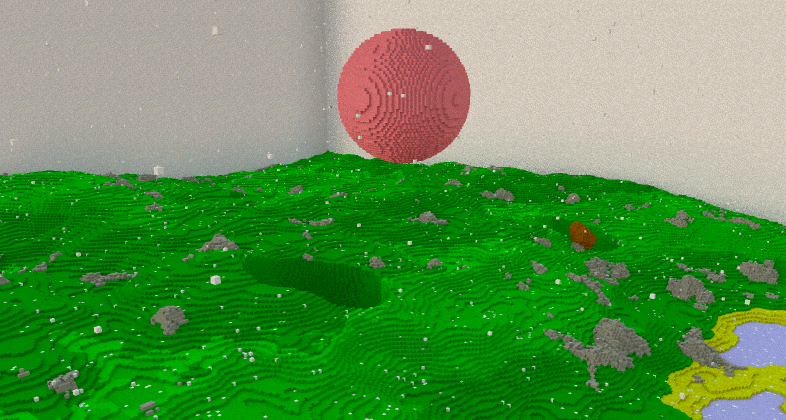
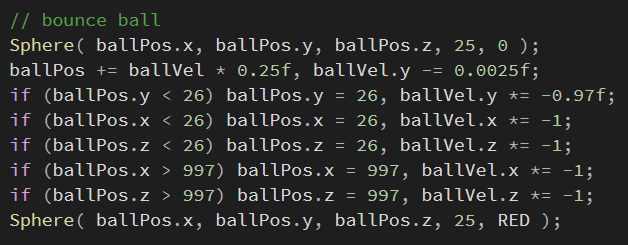
The bouncer demo uses spheres for the main ‘actor’. Each frame, the red sphere is removed at the old location (by using color 0), and drawn at the new location. It thus leaves holes in the ground…
void Copy( int3 startXYZ, int3 endXYZ, int3 destXYZ )
...
Copies voxels between startXYZ and endXYZ (inclusive) to location destXYZ.
void HDisc( float x, float y, float z, float r, uint c );
void HDisc( float3 pos, float r, uint c );
Draws a disc with the specified radius at location (x, y, z). Once used to render a drop shadow for a bouncing ball. Now probably somewhat deprecated.
void Print( char* text, uint x, uint y, uint z, uint c )
void Print( char* text, (u)int3 pos, uint c );
Print text at the specified location, along the x-axis.
uint LoadSprite( char* voxFile )
Loads a sprite from a MagicaVoxel .vox file, which is added to the world at an invisible location (x=-9999), and returns an identifier for the sprite, which can be used in subsequent calls to CloneSprite and MoveSprite.
uint CloneSprite( uint idx )
Clones an existing sprite and places the clone (with a new identifier) at an invisible location (x=-9999).
void MoveSpriteTo( uint idx, uint x, uint y, uint z )
void MoveSpriteTo( uint idx, const (u)int3 pos )
Moves the specified sprite to the specified location.
uint LoadTile( char* voxFile )
Loads a tile from a .vox file and returns the tile identifier. The .vox file must contain a single-frame bitmap of 8x8x8 voxels.
uint LoadBigTile( char* voxFile )
Loads a ‘big tile’ from a .vox file and returns the BigTile identifier. The .vox file must contain a single-frame bitmap of 16x16x16 voxels.
void DrawTile( uint idx, uint x, uint y, uint z )
void DrawTile( uint idx, (u)int3 pos )
Draws the tile with the specified index at the specified location. Location is in bricks, so x, y and z range from 0..127.
void DrawTiles( char* tileString, uint x, uint y, uint z )
void DrawTiles( char* tileString, (u)int3 pos )
Draws a string of tiles along the x-axis. Use characters ‘0’..’9′ to identify tiles, and a space to skip a tile: e.g., “2000 0002” will draw tile 0 six times, with a hole in the middle, and with tile 2 at the start and the end.
void DrawBigTile( uint idx, uint x, uint y, uint z )
void DrawBigTile( uint idx, (u)int3 pos )
Draws the BigTile with the specified index at the specified location. Location is in double bricks, so x, y and z range from 0..63.
void DrawBigTiles( char* tileString, uint x, uint y, uint z )
void DrawBigTiles( char* tileString, (u)int3 pos )
Draws a string of BigTiles along the x-axis.
void LookAt( float3 pos, float3 target )
Positions the camera at the specified position, looking at the specified target.
void XLine( uint x, uint y, uint z, int l, uint c )
…
Draws a line from (x,y,z) to (x+l,y,z) using color c. If l is a negative value, the line will be drawn from (x-l,y,z) to (x,y,z).
void YLine( uint x, uint y, uint z, int l, uint c )
…
Draws a line from (x,y,z) to (x,y+l,z) using color c. If l is a negative value, the line will be drawn from (x,y-l,z) to (x,y,z).
void ZLine( uint x, uint y, uint z, int l, uint c )
…
Draws a line from (x,y,z) to (x,y,z+l) using color c. If l is a negative value, the line will be drawn from (x,y,z-l) to (x,y,z).
bool IsOccluded( float3 P1, float3 P2 )
This function returns true if there is no obstacle between position P1 and P2.
float Trace( float3 P1, float3 P2 )
Returns the distance of the first obstacle along a ray from P1 in the direction of P2. This includes obstacles beyond P2; P2 is only used to determine the direction of the ray.

Recent Comments