this tutorial is under construction and intended for proofreaders only for now.
The previous tutorial introduced you to the template. You can now draw some lines and print some text in all kinds of colors, but that’s clearly far from the goal of making actual games, where bullets wizz past in glorious 3D and enemies flank you in the smartest ways. To get a bit closer to that, we’ll take the static coordinates from last time and make them a bit more flexible by using C++ variables and functions. We’ll need that for the next part, which is all about loops, sprites and other bouncy things.
Getting the stuff you need
For this tutorial, you will be using the same template from the 2nd tutorial:
https://www.cs.uu.nl/docs/vakken/magr/wrldtmpl8-2021-sep30.zip
Extract the template zip file to a fresh directory (say, C:\Projects\variables or where ever you saved your project from the previous tutorial) and load up the .sln file.
Change the Tick function in mygame.cpp to this:
|
1 2 3 4 5 6 |
void MyGame::Tick( float deltaTime ) { Line( 240, 20, 800, 300, 20, 800, 1 ); Line( 270, 20, 800, 270, 20, 400, 1 ); Line( 240, 20, 400, 300, 20, 400, 1 ); } |
This paints the I of IMPRESSIVE in glorious white on a vibrant blue backdrop. Now imagine we would like thicker lines. We take the three line commands, copy them, and draw them one pixel to the right:
|
1 2 3 4 5 6 7 8 9 |
void MyGame::Tick( float deltaTime ) { Line( 240, 20, 800, 300, 20, 800, 1 ); Line( 270, 20, 800, 270, 20, 400, 1 ); Line( 240, 20, 400, 300, 20, 400, 1 ); Line( 241, 20, 800, 301, 20, 800, 1 ); Line( 271, 20, 800, 271, 20, 400, 1 ); Line( 241, 20, 400, 301, 20, 400, 1 ); } |
Now, that’s a bit disappointing: obviously, only the vertical line got thick now. Let’s draw all six lines one more time, this time one pixel lower:
|
1 2 3 4 5 6 7 8 9 10 11 12 13 14 15 |
void MyGame::Tick( float deltaTime ) { Line( 240, 20, 800, 300, 20, 800, 1 ); Line( 270, 20, 800, 270, 20, 400, 1 ); Line( 240, 20, 400, 300, 20, 400, 1 ); Line( 241, 20, 800, 301, 20, 800, 1 ); Line( 271, 20, 800, 271, 20, 400, 1 ); Line( 241, 20, 400, 301, 20, 400, 1 ); Line( 240, 19, 800, 300, 19, 800, 1 ); Line( 270, 19, 800, 270, 19, 400, 1 ); Line( 240, 19, 400, 300, 19, 400, 1 ); Line( 241, 19, 800, 301, 19, 800, 1 ); Line( 271, 19, 800, 271, 19, 400, 1 ); Line( 241, 19, 400, 301, 19, 400, 1 ); } |
This time the result is satisfying. However, duplicating text is not something you want to spend a career on: we need to find a smarter way to do this. In C/C++ you would use a function for this. But before we get to that, let’s try something else.
|
1 2 3 4 5 6 7 8 9 10 |
void MyGame::Tick( float deltaTime ) { int x = 240; int y = 20; int z = 400; int color = 1; Line( x, y, z + 400, x + 60, y, z + 400, color ); Line( x + 30, y, z + 400, 270, y, z, color ); Line( x, y, z, x + 60, y, z, color ); } |
Here we have the original three lines again, but this time, each coordinate uses X, Y or Z in a little formula to produce the actual number for the coordinate. X, Y and Z are variables here, and you may give them any name you like: the color 1 for instance, as used in earlier code, now sites in a variable named ‘color’. Variables are useful; we can now make the ‘I’ move. Try this:
|
1 2 3 4 5 6 7 8 9 10 11 12 |
int x = 240; int y = 20; int z = 400; void MyGame::Tick( float deltaTime ) { ClearWorld(); int color = 1; Line( x, y, z + 400, x + 60, y, z + 400, color ); Line( x + 30, y, z + 400, 270, y, z, color ); Line( x, y, z, x + 60, y, z, color ); y = y + 1; } |
That is pretty impressive: all of a sudden we have a letter I floating in mid-air, in glorious 3D. Note the introduction of the ClearWorld command: this removes everything, including the walls of the default scene, exposing the sky. For later frames, it removes the floating object at the old position, so that we can draw it at a new position. Try for yourself what happens when you disable the ClearWorld command. Easiest way to do that is to make it a ‘comment’: just put \\ in front of it.
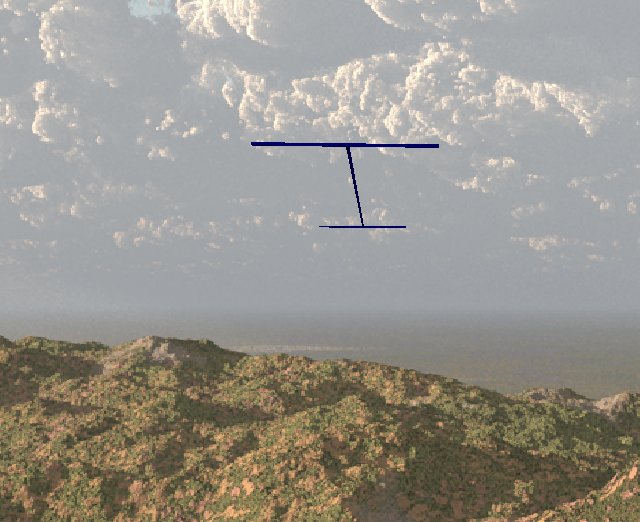
Something odd happened to the three variables x, y and z: Their definition was moved outside the Tick function. When it was inside the Tick function, x, y and z were reset for every image, because the lines int x = 240;, int y = 20; and int z = 400 were executed for each invocation of Tick. Since they are supposed to be set to their initial values only in the first frame, you would expect that they should go to the Init function. However, one function cannot access variables in another function in C/C++, and even if two variables in different functions have identical names, they will still be two different things. Variables created outside a function however are available in all functions. And, they are initialized only once. In C/C++ terminology, the variables x and y were declared within the scope of the Tick method, and now they are declared at the global scope.
Functions
A function is a piece of code. You have seen two of them so far: MyGame::Init() and MyGame::Tick(). We can create our own too. Add the highlighted line to the mygame.h header file:
|
1 2 3 |
void Init(); void DrawI( int x, int y, int z, int color ); void Tick( float deltaTime ); |
You can put it in many correct locations, but between the Init and Tick functions is probably a good place.
Then, return to mygame.cpp, and add the following function, just above the MyGame::Tick function:
|
1 2 3 4 5 6 |
void MyGame::DrawI( int x, int y, int z, int color ) { Line( x, y, z + 400, x + 60, y, z + 400, color ); Line( x + 30, y, z + 400, 270, y, z, color ); Line( x, y, z, x + 60, y, z, color ); } |
And, change the Game::Tick function to this:
|
1 2 3 4 |
void MyGame::Tick( float deltaTime ) { DrawI( 240, 20, 400, 1 ); } |
In other words: When we type DrawI( 240, 20, 400, 1 ), we actually execute the code specified in Game::DrawI() method. And, whatever we type after DrawI (in this case: 240, 20, 400, 1) gets passed to the function: Inside the function, x, y, z and color will contain the values 240, 20, 400 and 1. So, we can now finally render fat characters, without endless Line commands:
|
1 2 3 4 5 6 7 |
void MyGame::Tick( float deltaTime ) { DrawI( 240, 20, 400, 1 ); DrawI( 241, 20, 400, 1 ); DrawI( 240, 21, 400, 1 ); DrawI( 241, 21, 400, 1 ); } |
And that’s quite a bit more reasonable.
By the way, the ClearWorld and Line that you have been using all along are functions too! Have a look at template.cpp, line 173:
|
1 2 3 4 5 6 7 8 9 10 11 12 13 |
void Line( const uint x1, const uint y1, const uint z1, const uint x2, const uint y2, const uint z2, const uint c ) { int dx = (int)x2 - x1, dy = (int)y2 - y1, dz = (int)z2 - z1; int l = max( max( abs( dx ), abs( dy ) ), abs( dz ) ); if (l < 1) return; float sx = (float)dx / l, sy = (float)dy / l, sz = (float)dz / l; float x = (float)x1, y = (float)y1, z = (float)z1; for( int i = 0; i < l; i++ ) { world->Set( (int)x, (int)y, (int)z, c ); x += sx, y += sy, z += sz; } } |
Not everything in this function will make sense right now, but rest assured: this is how you draw a proper line in C/C++.
Assignment
Here’s your task for today:
- Create a function that draws a fat I. Call it
DrawFatI. This function will useDrawIin turn, of course. - Modify
MyGame::Tick()in such a way that the fat I moves across the screen.
Feeling adventurous? Here’s an optional challenge for you:
- Find a way to move the fat I across the screen without a trail and without using ClearWorld. The idea is that the default shoebox world remains intact while the object moves inside it.
Once you have completed this assignment you may continue with the next part.
Tutorial Index
Articles in this series:
- Getting Started
- The Template
- Variables and Functions (you are here)

2 thoughts on “3D Game Programming in C++, Part 3: Variables”